TKL Keyboard Tester
A tenkeyless (TKL) keyboard is a full-size board without the number pad: 87 keys, including Print Screen, Scroll Lock and Pause. Press each one below until the whole board is green.
0 of 87 keys, 0 at once, No chatter
- Not pressed yet
- Held now
- Works
- Chatter
- Browser can’t see it
How chatter detection and greyed-out keys work
A key is flagged for chatter when it sends a second press less than 50 ms after the first. Even fast deliberate tapping leaves about 100 ms between presses, so a repeat that quick comes from the switch, not your finger. Holding a key down (auto-repeat) is never counted.
Dashed keys such as Fn never reach a browser: the keyboard or the operating system handles them. They don’t count towards your total. Test Fn by holding it with another key. Some volume and brightness keys are handled the same way. Browser shortcuts such as Ctrl+W are left alone, so you can’t close this tab by accident.
Press every key to get your result
When every key is green you’ll get a result here. Already know what’s wrong? Skip ahead.
Testing a TKL keyboard
- On Windows, Print Screen only lights up when you release it. That still counts.
- Scroll Lock and Pause rarely do anything in apps, but they should still light up here.
- Hold W, A, S, D, Shift and Space together to check a common gaming combination.
TKL keyboard tester FAQ
Why does Print Screen only light up when I let go?
Windows only reports Print Screen when the key is released, because it uses the press itself to take a screenshot. The tester counts the release, so a working Print Screen key still turns green.
What’s the difference between TKL and 80% keyboards?
They’re the same layout. “80%” is another name for tenkeyless: full-size without the number pad. Use this tester for either.
Some keys don’t register. Is my keyboard broken?
Rule out the setup first. Try another USB port or cable, charge or re-pair a wireless board, check any Windows/Mac mode switch, and try another computer. If a key still doesn’t register on a hot-swap board, swap its switch with one from a key you rarely use. If the fault moves with the switch, replace the switch. If it stays in place, the socket or circuit board is at fault. On soldered boards and laptops, clean under the keycap first. A key that stays dead usually means a repair or a new keyboard.
What is key chatter, and how does this tester detect it?
Chatter is when one press types a letter twice. It usually comes from a worn or dirty switch, or firmware that doesn’t filter contact bounce. The tester flags a key when a second press arrives less than 50 ms after the first. Even fast deliberate tapping leaves about 100 ms between presses, so anything quicker is the switch, not you. Holding a key down (auto-repeat) never counts as chatter, and you can change the threshold to 30 or 80 ms.
How do I test for ghosting or key rollover?
Hold several keys at once, such as A, S, D, F plus J, K, L. The “at once” count above the keyboard shows the highest number registered together. Many USB keyboards handle 6 keys plus modifiers (6KRO), while N-key rollover boards register every key. If a key you’re holding doesn’t light up, the keyboard is blocking that combination. If a key you didn’t press lights up, that’s ghosting.
Why do volume, brightness or Print Screen keys behave differently?
Media and brightness keys are often handled by the operating system before the browser sees them, so some may never light up. When they do reach the browser, they appear under “Also detected”. On Windows, Print Screen only reports its release, and the tester counts that. Browser shortcuts such as Ctrl+W are never blocked, so you can’t lose this tab by accident.
Helpful guides
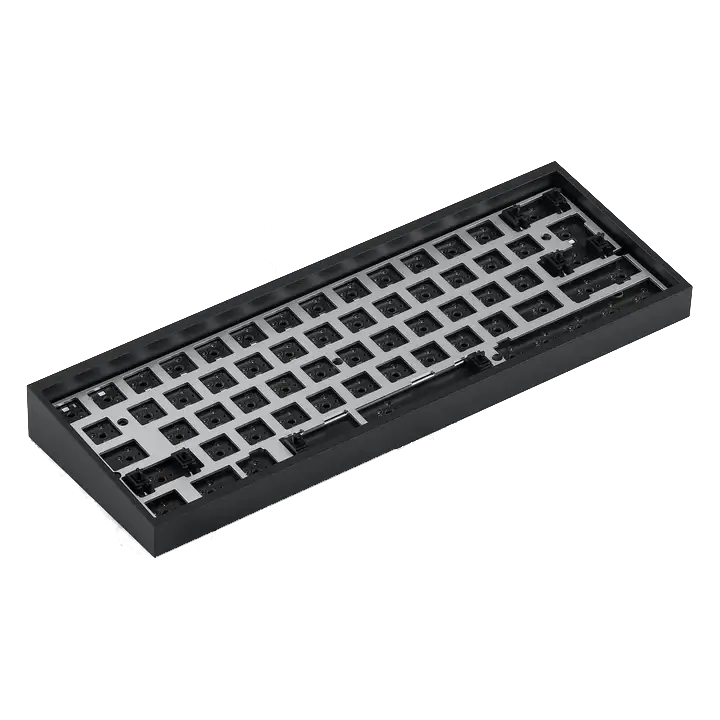
Choose your keyboard size
Compare full-size, TKL, 75%, 65%, and 60% keyboards by the keys you use, then check layout and keycap compatibility before buying.
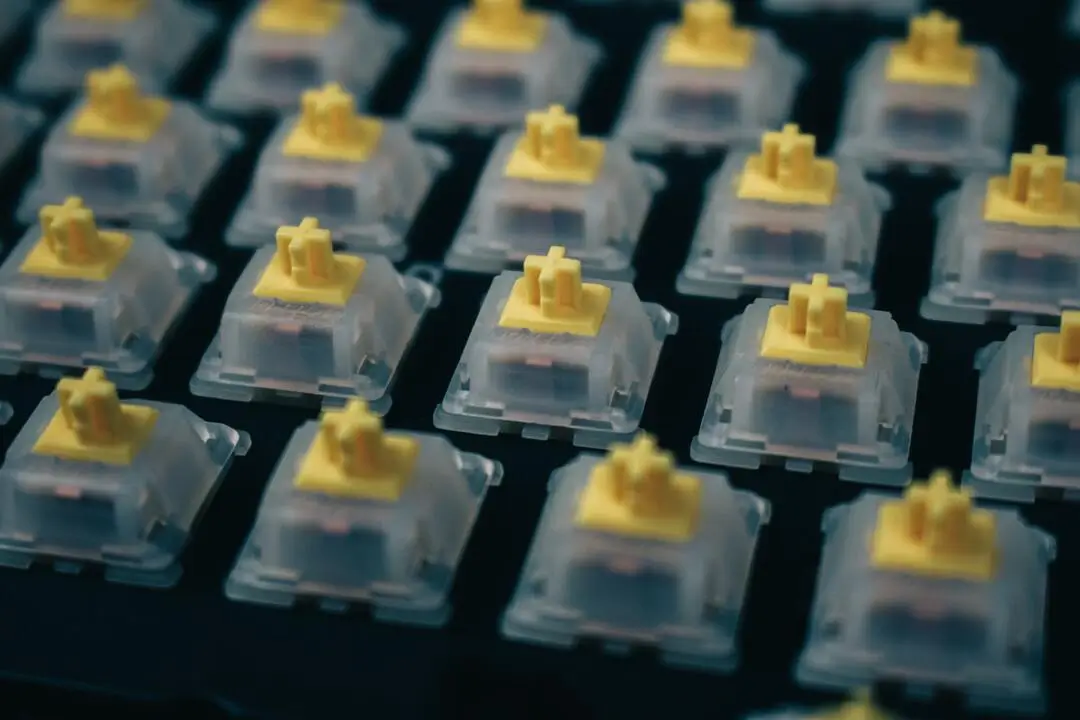
Choose the right switches
Choose linear, tactile, or clicky keyboard switches by feel, force, sound, and fit—without relying on color names or marketing labels.
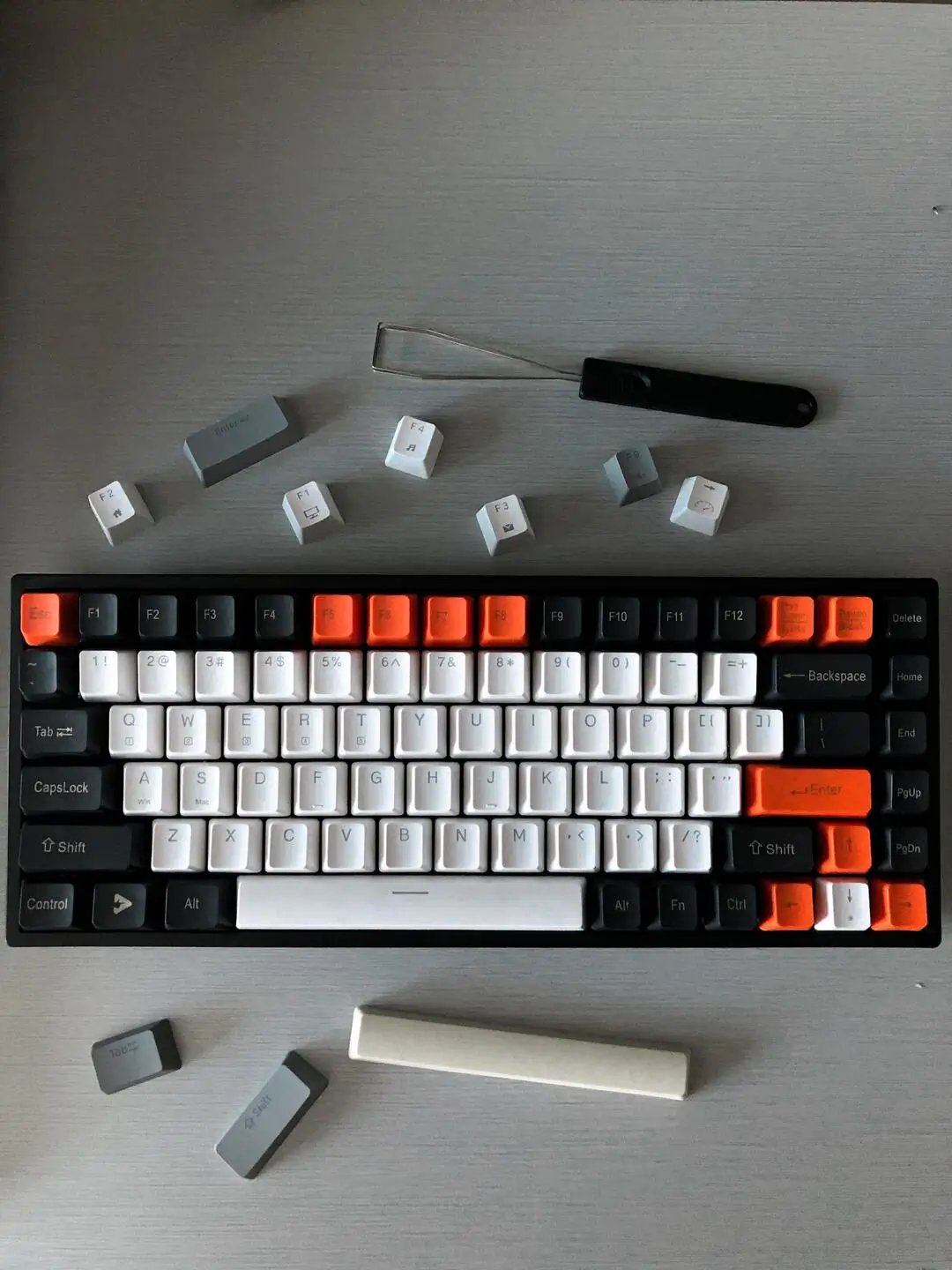
Choose compatible keycaps
Check keycap stem, layout coverage, key sizes, profile, material, and legends in the right order before buying a set.